Apple AirTag Silver Bluetooth Tracker for Easy Item Location
$ 23.23
Description
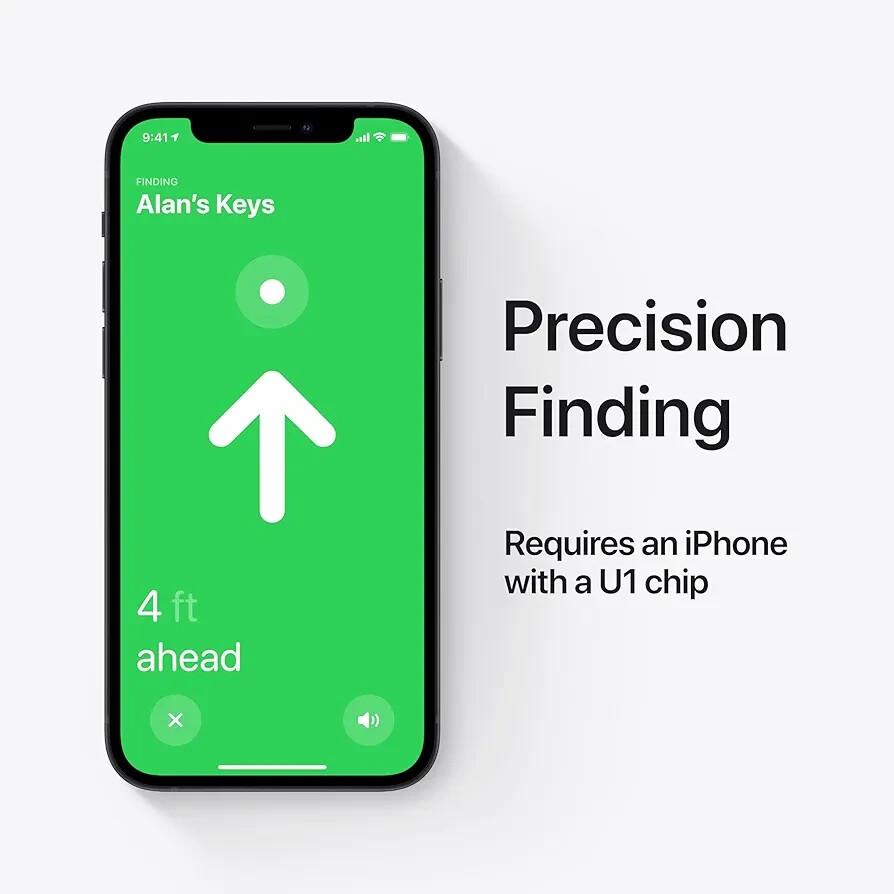
1. Set Up Your AirTag Simple One-Tap Setup : To start, unbox your AirTag and pull out the tab to activate it. Hold the AirTag close to your iPhone or iPad. A pop-up will appear on your device's screen asking if you want to connect the AirTag. Tap the pop-up and follow the on-screen instructions to name your AirTag (e.g., "Backpack," "Keys," etc.) and assign it to your Apple ID. 2. Attach AirTag to Your Item Once your AirTag is set up, simply attach it to whatever item you want to track—whether it’s keys, a bag, your wallet, or anything else. The AirTag is small and lightweight, making it easy to slip into a pocket, clip onto a keychain, or stash in your backpack. 3. Use Find My App to Track Your AirTag Access the Find My App : Open the Find My app on your iPhone or iPad. You’ll find the "Items" tab at the bottom of the screen. Here, you’ll see all the AirTags you’ve set up, as well as any other Apple devices that are connected to your Apple ID (like AirPods or your iPhone). Tap on your AirTag to see its current location on a map. If it's nearby, you’ll get a location within a few feet. 4. Find Your AirTag Using Sound If your AirTag is close by and you’re having trouble locating it visually, tap the “Play Sound” button in the Find My app. The AirTag’s built-in speaker will make a sound, helping you pinpoint its location, whether it’s under a couch cushion or hidden inside a bag. 5. Use Precision Finding (For Compatible iPhones) If you have an iPhone 11 or later, you can use Precision Finding . This feature uses Ultra Wideband (UWB) technology to provide more accurate directions. The Find My app will show you the direction and distance to the AirTag using a combination of visual and haptic feedback. You’ll see arrows pointing toward the AirTag, and your phone will vibrate as you get closer. 6. Track Items Further Away Using the Find My Network If your AirTag is not within Bluetooth range, don’t worry! The Find My network can help you track it over greater distances. The AirTag uses nearby Apple devices (iPhones, iPads, and Macs) to relay its location to the Find My app. This data is anonymous and encrypted, ensuring privacy. Hundreds of millions of Apple devices make the Find My network vast, so even if your AirTag is far away, it can still be detected when it comes into range of another Apple device. 7. Activate Lost Mode If you can’t find your AirTag and it’s not nearby, you can enable Lost Mode . In the Find My app, select your AirTag and tap “Lost Mode.” This will prompt the app to notify you when the AirTag is found by another Apple device in the network. You can also enter your contact information (like a phone number) so that if someone finds your AirTag, they can contact you easily. 8. Privacy and Security Apple designed the Find My network to be privacy-focused. All communication with the network is anonymous and encrypted , meaning that no one can track your location without your consent. Location data and history are never stored on the AirTag itself, ensuring that you are the only one who has access to your AirTag’s location data. Even if someone else tries to track your AirTag, they won’t be able to see your personal information, and they won’t know where the AirTag is unless they have access to your Apple ID. 9. Battery Life and Replacements AirTags are powered by a user-replaceable CR2032 battery , which lasts about one year . When the battery is low, you’ll receive a notification on your iPhone to replace it. Simply twist off the back of the AirTag to replace the battery. 10. Additional Features Siri Integration : You can also ask Siri to help you find your AirTag. For example, say, “Hey Siri, where are my keys?” if your keys have an AirTag attached to them. Seamless Integration with Apple Ecosystem : Since AirTag works within Apple’s ecosystem, it’s easy to set up, track, and manage multiple items in one place through the Find My app.